As a DevOps engineer, I handle a lot of different tasks every day. Over time, I’ve developed a set of go-to procedures for common operations. I’m sharing a few of my personal, battle-tested quick-start guides for things I do regularly: upgrading a self-hosted GitLab instance, backing up our DNS server, setting up monitoring alerts in Slack, and automating deployments to Cloud Run.
Part 1: How I Upgrade GitLab Community Edition (On-Premise)
Upgrading our on-premise GitLab instance is something I approach with caution. The most important lesson I’ve learned is to always follow the official upgrade path; you can’t skip major versions without causing problems. It requires careful, incremental steps.
First, I Check the Upgrade Path
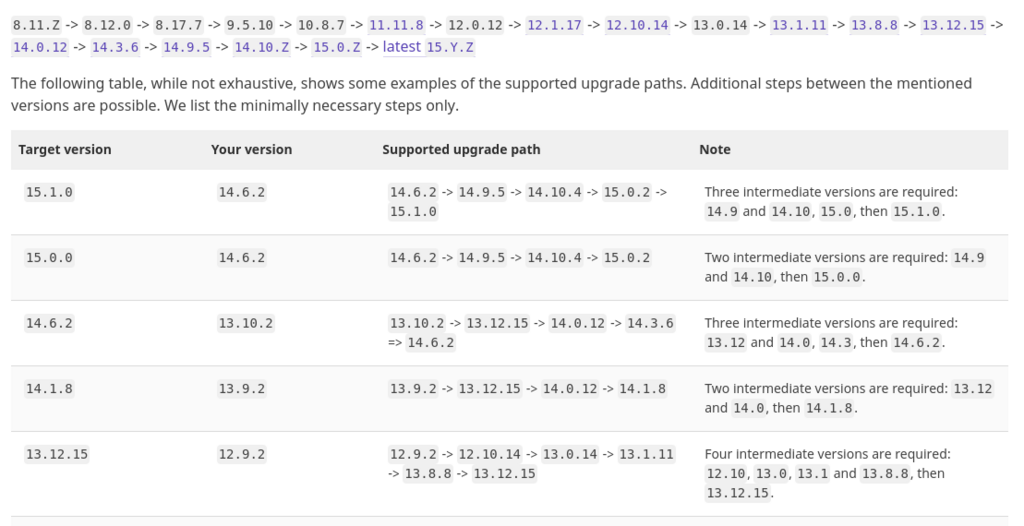
Before I do anything, I check the official GitLab Upgrade Path Documentation. For example, if I were upgrading from version 14.0.0 to 16.0.0, the path would look something like this, with several required stops in between:
14.0.0 → 14.9.5 → 14.10.5 → 15.0.5 → 15.4.6 → 15.11.13 → 16.0.0
My Step-by-Step Upgrade Process
For each version hop in the path, I follow this sequence:
-
Refresh packages and check status: I make sure my package list is up-to-date and that all GitLab services are running correctly with
sudo gitlab-ctl status. -
Upgrade to the specific next version: I install the exact next version required by the upgrade path.
# Replace version with the next one in the upgrade path sudo EXTERNAL_URL="https://gitlab.example.com" apt-get install gitlab-ce=15.0.5-ce.0 -
Run migrations and reconfigure: After the package installs, I run the database migrations and then reconfigure the instance.
sudo gitlab-rake db:migrate sudo gitlab-ctl reconfigure -
Verify: I check the status again to make sure everything came up correctly before moving to the next version in the path.
I’ve even wrapped this process in a shell script to automate the multi-step upgrades, which makes it much more reliable.
#!/bin/bash
# upgrade-gitlab.sh

VERSIONS=(
  "14.9.5-ce.0"
  "14.10.5-ce.0"
  "15.0.5-ce.0"
  # ... and so on
)

for version in "${VERSIONS[@]}"; do
  echo "Upgrading to GitLab CE $version"
  sudo EXTERNAL_URL="https://gitlab.example.com" apt-get install -y gitlab-ce=$version
  sudo gitlab-rake db:migrate
  sudo gitlab-ctl reconfigure
  sudo gitlab-ctl status
  echo "Waiting 30 seconds before next upgrade..."
  sleep 30
done
If a migration fails, the first place I look is the PostgreSQL logs (sudo gitlab-ctl tail postgresql).
Part 2: My Strategy for Backing Up Technitium DNS Server
Our Technitium DNS server is critical, so I have a robust backup strategy. The configuration is stored in simple JSON files, which makes it easy to back up.
For quick, one-off backups, I just tar up the /etc/dns/config/ directory. But for production, I rely on an automated daily backup script that runs via cron. This script creates a timestamped backup and cleans up any backups older than 30 days.
Here is the script I use, located at /usr/local/bin/backup-dns.sh:
#!/bin/bash
BACKUP_DIR="/backup/dns"
RETENTION_DAYS=30
DATE=$(date +%Y%m%d-%H%M%S)
BACKUP_FILE="${BACKUP_DIR}/technitium-backup-${DATE}.tar.gz"

tar -czf "$BACKUP_FILE" -C /etc/dns config/
find "$BACKUP_DIR" -name "technitium-backup-*.tar.gz" -mtime +${RETENTION_DAYS} -delete
I schedule it with a simple cron job to run at 2 AM every day.
# sudo crontab -e
0 2 * * * /usr/local/bin/backup-dns.sh >> /var/log/dns-backup.log 2>&1
I also make sure to sync these backups to a remote server using rsync for off-site protection. Restoring is just as simple: I stop the service, extract the tarball to the right directory, fix permissions, and start it back up.
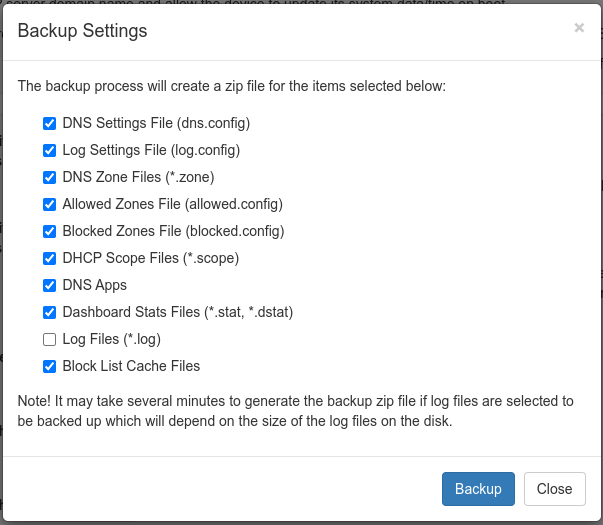
Of course, you can also use the web UI for manual backups, which is handy for quick changes.
Part 3: How I Integrate Sumo Logic Alerts with Slack
Getting real-time alerts is crucial. I integrate our Sumo Logic monitoring with Slack to get instant notifications. Here’s how I set it up.
-
Create a Slack Incoming Webhook: First, I go to my Slack Apps configuration and create a new Incoming Webhook for my
#monitoring-alertschannel. This gives me a unique URL that I can use to post messages. -
Configure the Sumo Logic Connection: Then, in Sumo Logic, I navigate to Manage Data > Monitoring > Connections and add a new Slack connection, pasting in the webhook URL I just created.
-
Create the Monitor and Notification: I create a new monitor (e.g., for high CPU usage) and in the Notifications section, I select the Slack connection I just configured. To avoid noisy, hard-to-read alerts, I use a custom JSON payload to format the Slack messages nicely. This gives me clear headers, formatted fields, and a button to jump directly to the query in Sumo Logic, which makes it much easier for the on-call person to react quickly.
{
  "text": "🚨 Sumo Logic Alert",
  "blocks": [
    {
      "type": "header",
      "text": {
        "type": "plain_text",
        "text": "{{TriggerType}}: {{Name}}"
      }
    },
    {
      "type": "section",
      "fields": [
        { "type": "mrkdwn", "text": "*Severity:*\n{{TriggerValue}}" },
        { "type": "mrkdwn", "text": "*Time:*\n{{TriggerTime}}" }
      ]
    },
    {
      "type": "actions",
      "elements": [
        {
          "type": "button",
          "text": { "type": "plain_text", "text": "View in Sumo Logic" },
          "url": "{{QueryUrl}}"
        }
      ]
    }
  ]
}
Part 4: My CI/CD Setup for Google Cloud Run
For our serverless applications on Google Cloud Run, I’ve automated the entire deployment process using CI/CD. Here are my pipeline configurations for both GitLab CI and GitHub Actions.
GitLab CI/CD Pipeline
# .gitlab-ci.yml
stages:
  - build
  - deploy

variables:
  GCP_PROJECT_ID: "my-project-id"
  REGION: "us-central1"
  SERVICE_NAME: "api-service"

build:
  stage: build
  image: google/cloud-sdk:latest
  script:
    - echo $GCP_SERVICE_KEY | base64 -d > ${HOME}/gcp-key.json
    - gcloud auth activate-service-account --key-file ${HOME}/gcp-key.json
    - gcloud config set project $GCP_PROJECT_ID
    - gcloud builds submit --tag gcr.io/$GCP_PROJECT_ID/$SERVICE_NAME:$CI_COMMIT_SHORT_SHA
  only:
    - main

deploy:
  stage: deploy
  image: google/cloud-sdk:latest
  script:
    - echo $GCP_SERVICE_KEY | base64 -d > ${HOME}/gcp-key.json
    - gcloud auth activate-service-account --key-file ${HOME}/gcp-key.json
    - gcloud config set project $GCP_PROJECT_ID
    - |
      gcloud run deploy $SERVICE_NAME \
        --image gcr.io/$GCP_PROJECT_ID/$SERVICE_NAME:$CI_COMMIT_SHORT_SHA \
        --region $REGION \
        --platform managed \
        --allow-unauthenticated \
        --set-env-vars="VERSION=$CI_COMMIT_SHORT_SHA"
  only:
    - main
GitHub Actions Pipeline
# .github/workflows/deploy-cloudrun.yml
name: Deploy to Cloud Run

on:
  push:
    branches: [ main ]

env:
  PROJECT_ID: my-project-id
  SERVICE_NAME: api-service
  REGION: us-central1

jobs:
  deploy:
    runs-on: ubuntu-latest

    steps:
    - uses: actions/checkout@v3

    - name: Setup Cloud SDK
      uses: google-github-actions/setup-gcloud@v1
      with:
        service_account_key: ${{ secrets.GCP_SA_KEY }}
        project_id: ${{ secrets.GCP_PROJECT_ID }}

    - name: Build image
      run: |
        gcloud builds submit \
          --tag gcr.io/$PROJECT_ID/$SERVICE_NAME:${{ github.sha }}

    - name: Deploy to Cloud Run
      run: |
        gcloud run deploy $SERVICE_NAME \
          --image gcr.io/$PROJECT_ID/$SERVICE_NAME:${{ github.sha }} \
          --region $REGION \
          --platform managed \
          --allow-unauthenticated
Final Takeaways
Across all these tasks, a few key principles have saved me time and again. I always follow official upgrade paths for critical software like GitLab. I automate my backups and, more importantly, I test my restores. When it comes to monitoring, I test my integrations and am careful to avoid alert fatigue, which keeps the team responsive. And for deployments, automation through CI/CD is non-negotiable.